ZAK TIVIMATE GUIDE
This is the app we recommend overall to use on Android TV Streaming Devices for the best experience possible.
Prerequisites
To install the ZAK TV Player, you will need to enable the option "Apps from Unknown Sources."
Refer to Prerequisite 1 for detailed instructions.
For all other Android devices, you will not need to enable "Apps from Unknown Sources" as described in Prerequisite 1.
Refer to Prerequisite 2 for detailed instructions on downloading and installing the app.
App Removal
Remove any existing Smarters-based apps and TiviMate app before attempting to install ZAK TV TiviMate. Please ask a member of staff if you are not sure what apps may conflict.
Installation Steps
Step 1
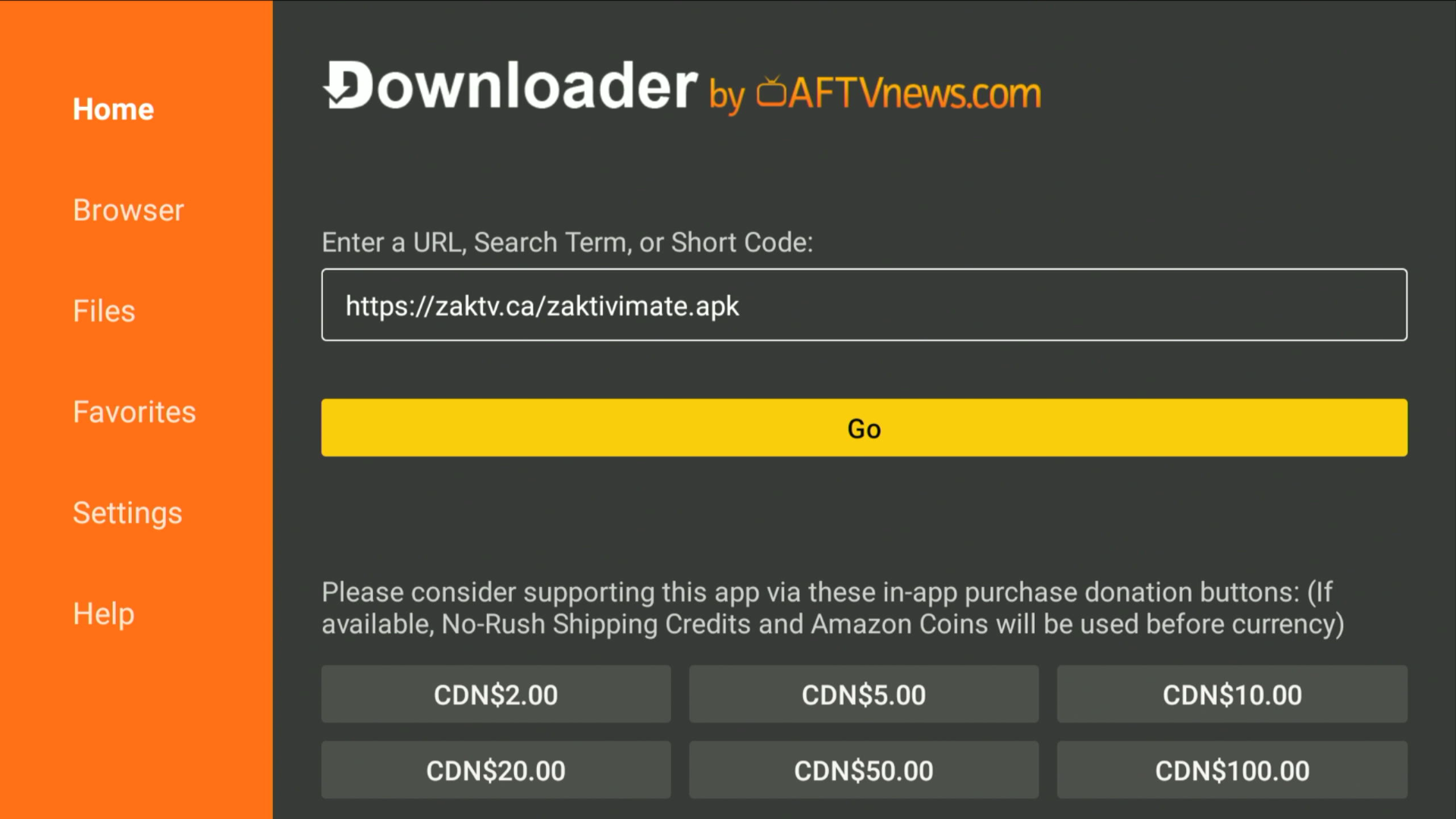
Type https://zaktv.ca/zaktivimate.apk or Downloader code: 500988 in Downloader's Enter a URL or Search Term: field. Press Go under the Enter a URL or Search Term: field.
Step 2
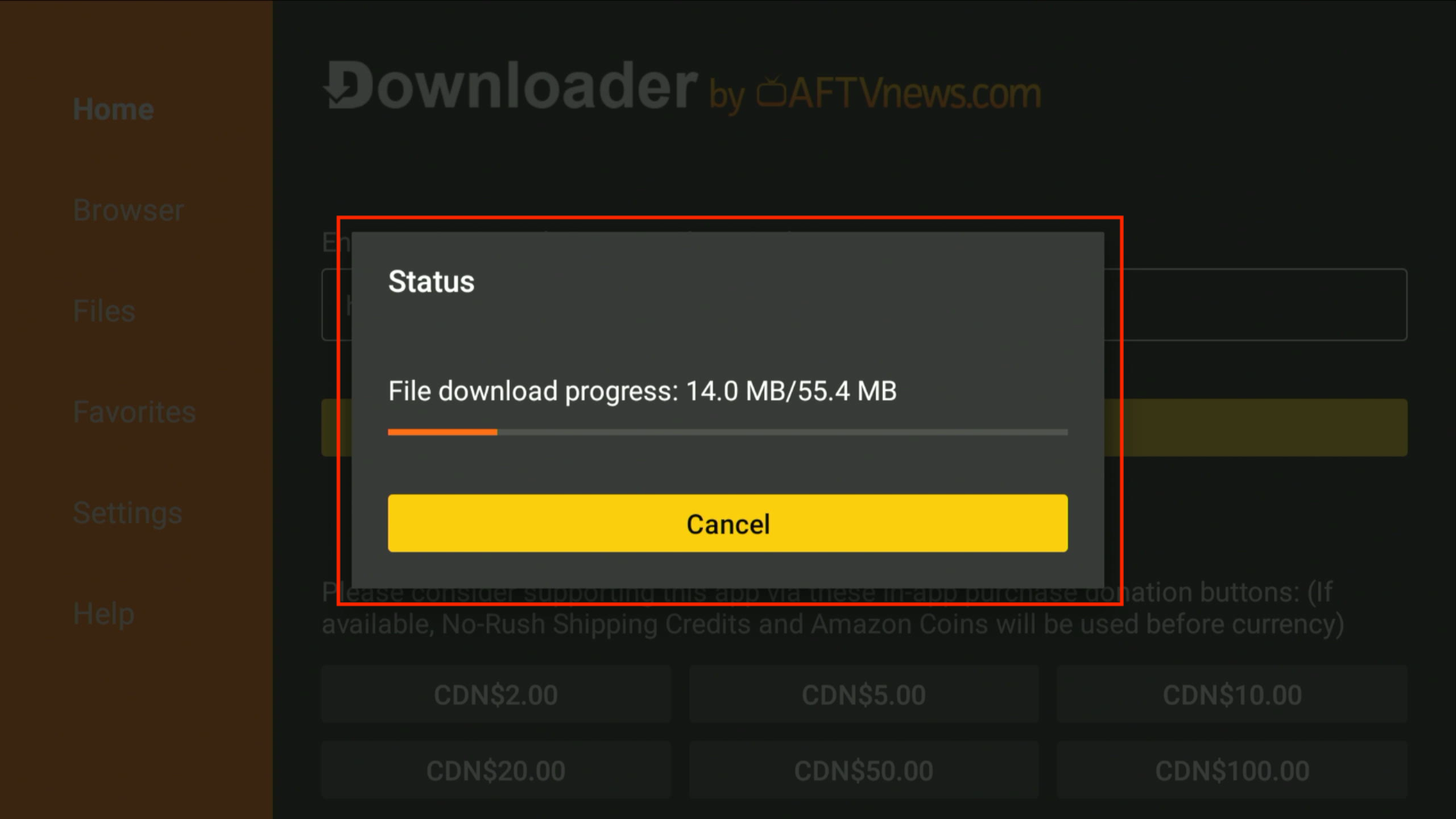
Downloader will start downloading the app.
If you see a pop-up saying, “For your security, your TV is not allowed to install unknown apps from this source,” please refer to Unknown Apps.
Step 3
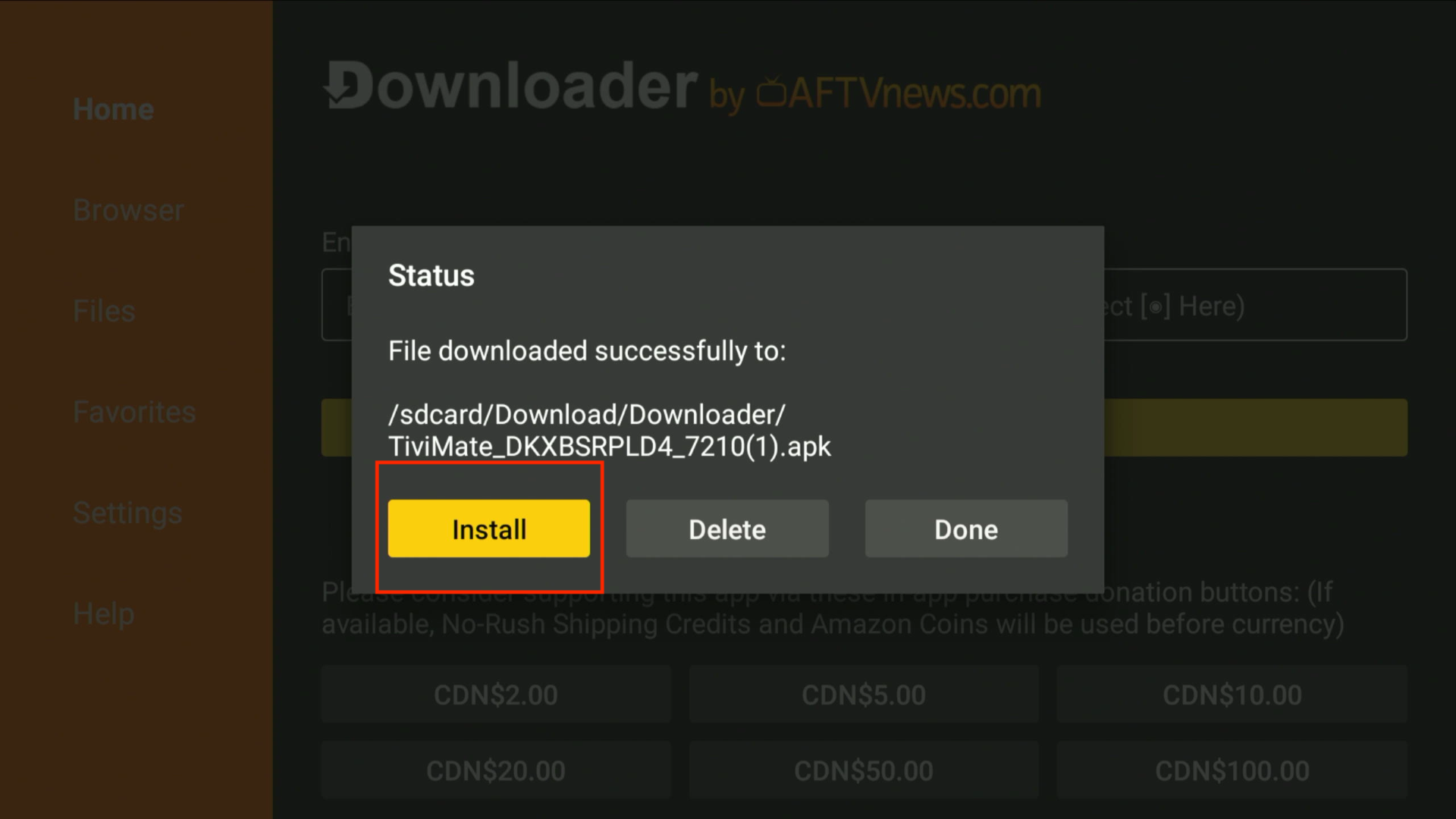
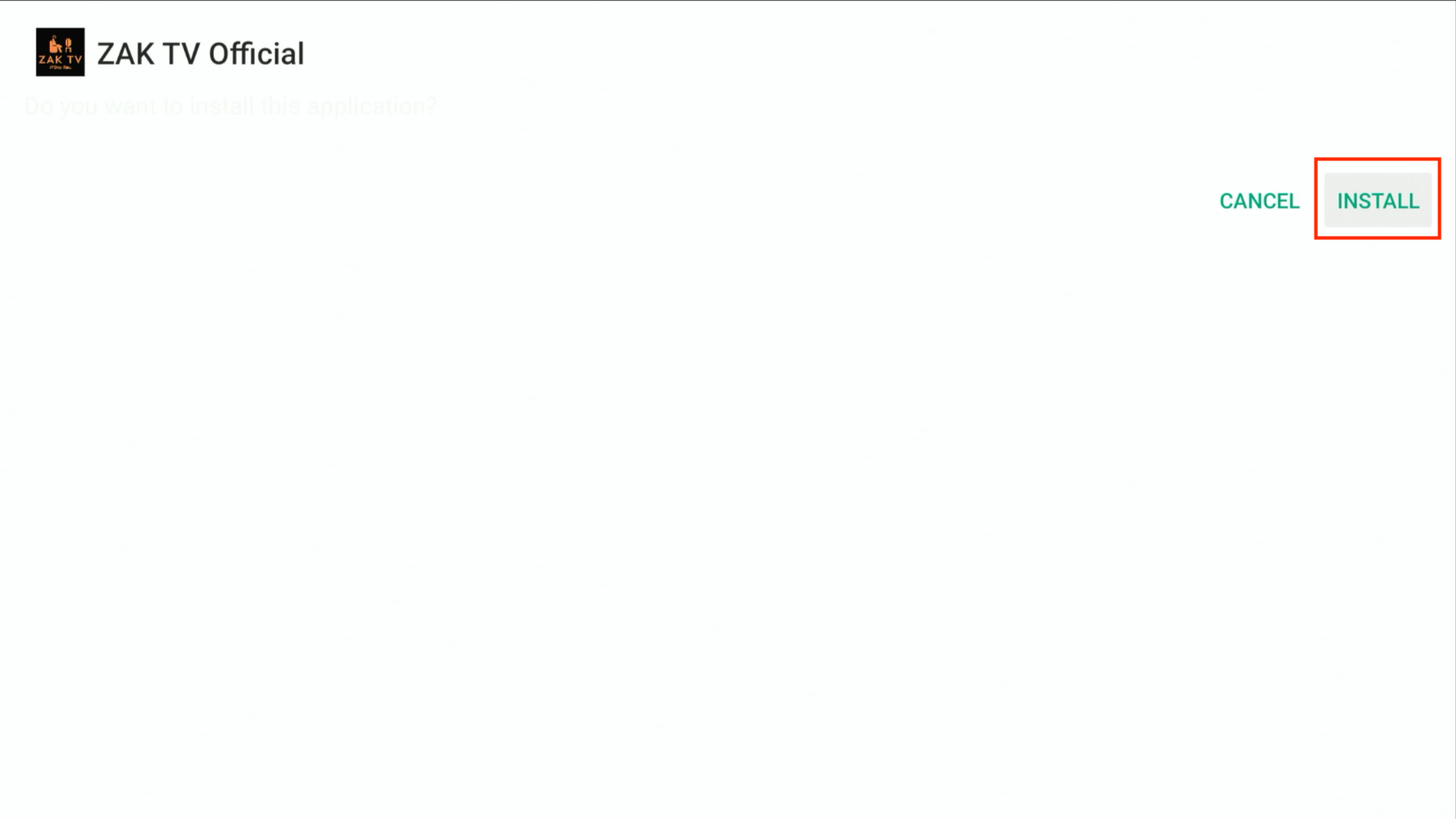
Click Install.
Step 4
Once prompted, click Install again.
Step 5
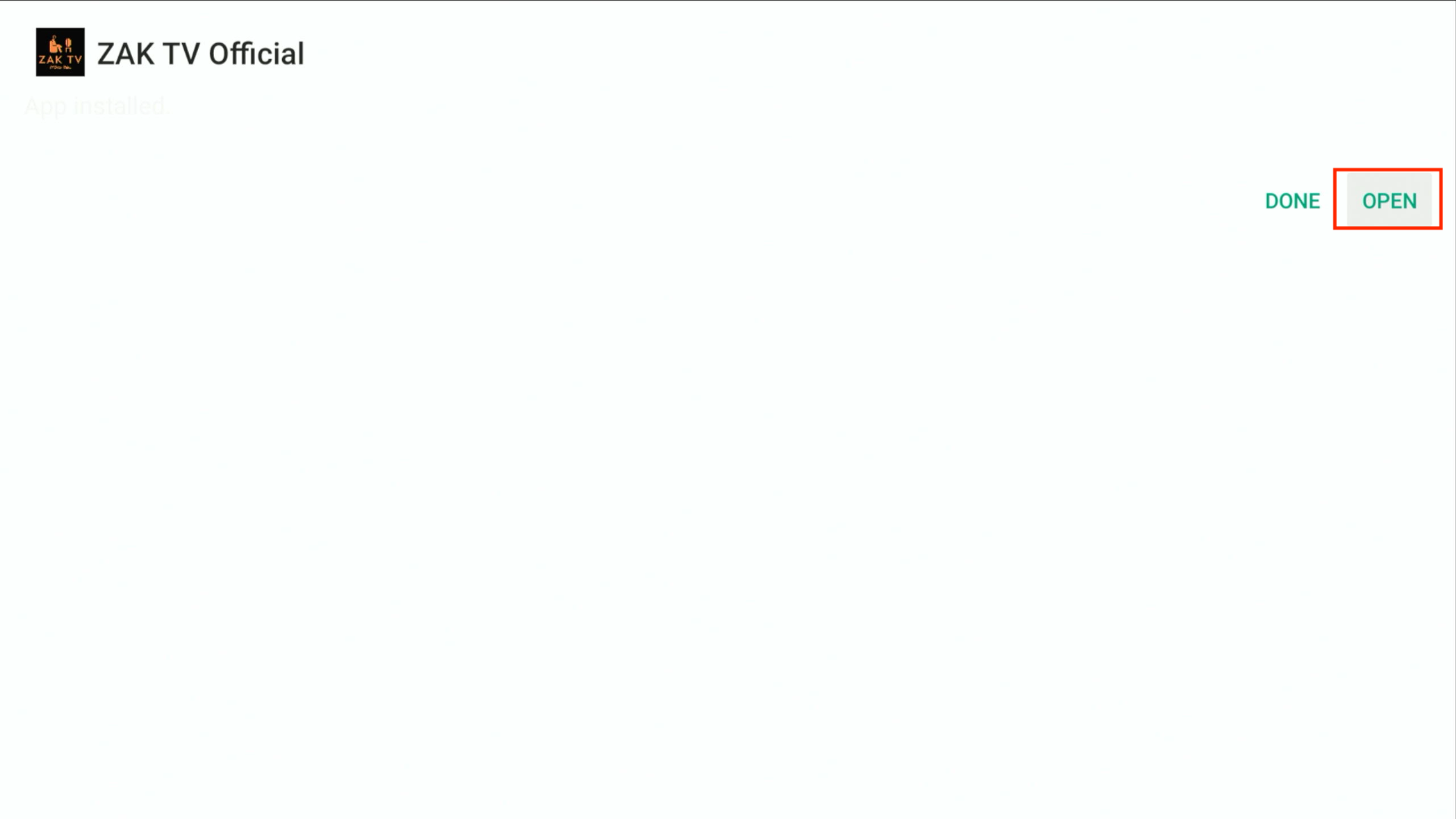
Select Open.
Step 6
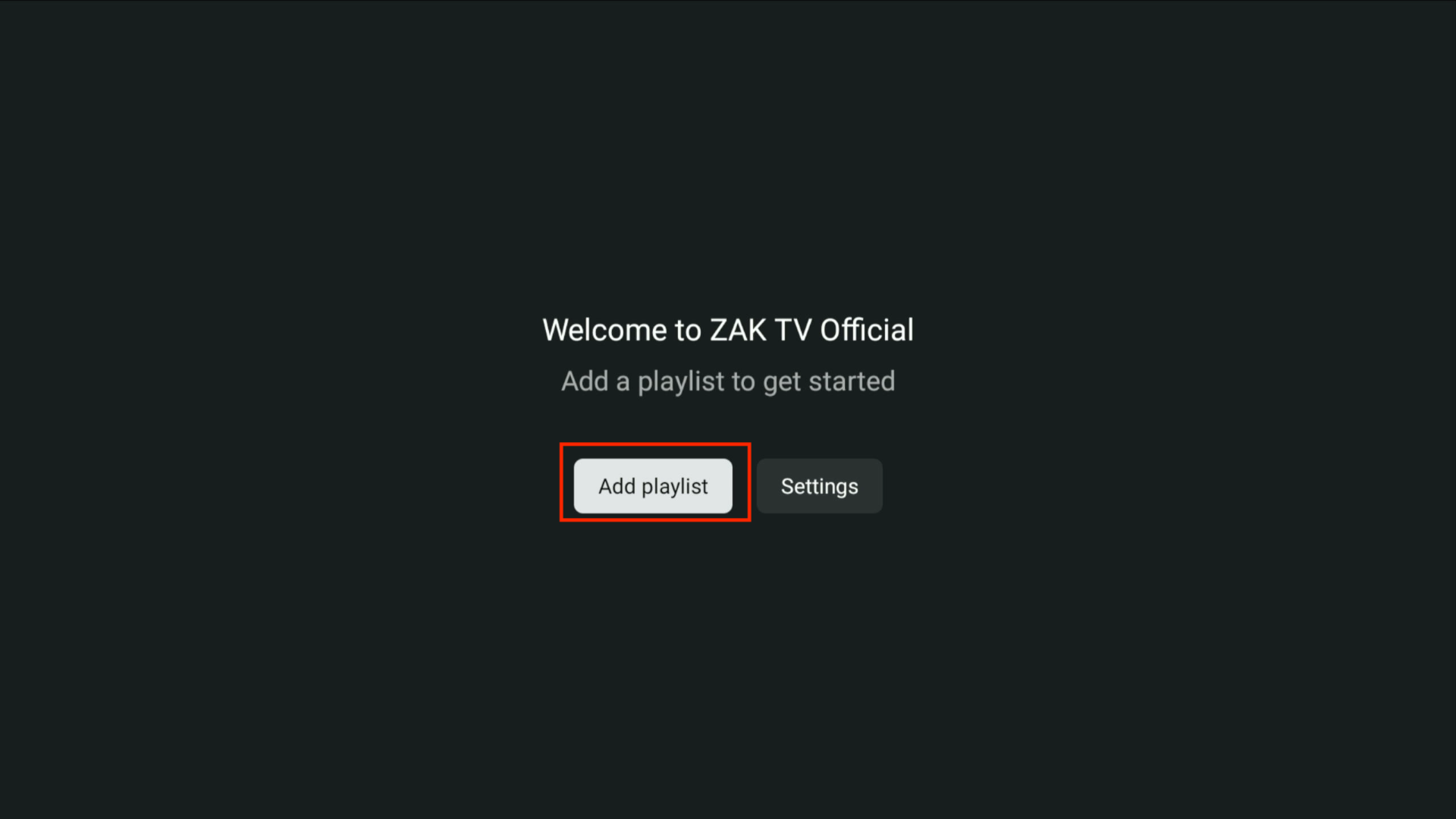
Congratulations! You have successfully downloaded and installed ZAK TV TiviMate. Proceed to add your playlist.
Step 7
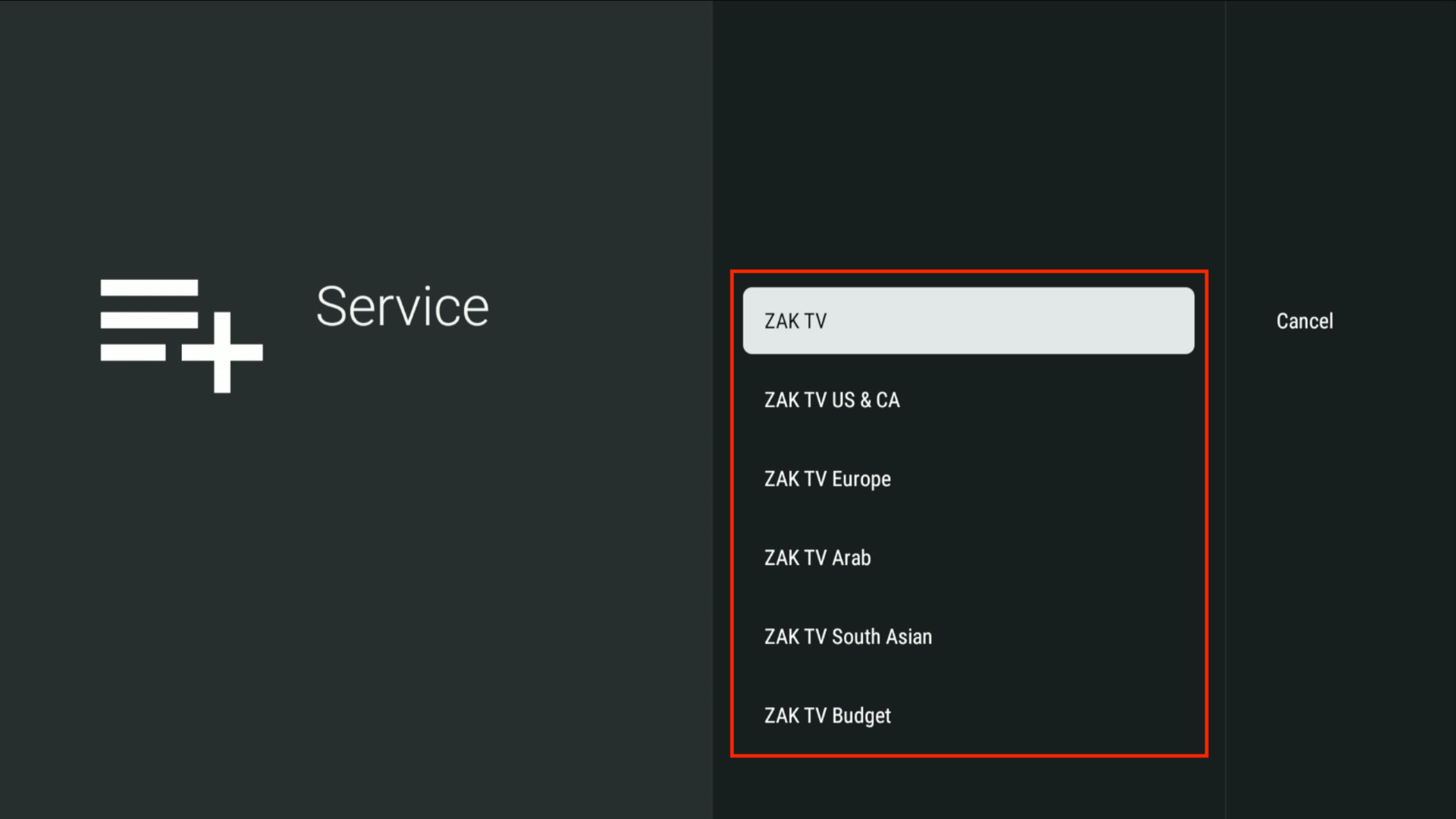
Choose the server you signed up for. If you're unsure, contact support via a technical support ticket.
Step 8
Input the login credentials provided during purchase.
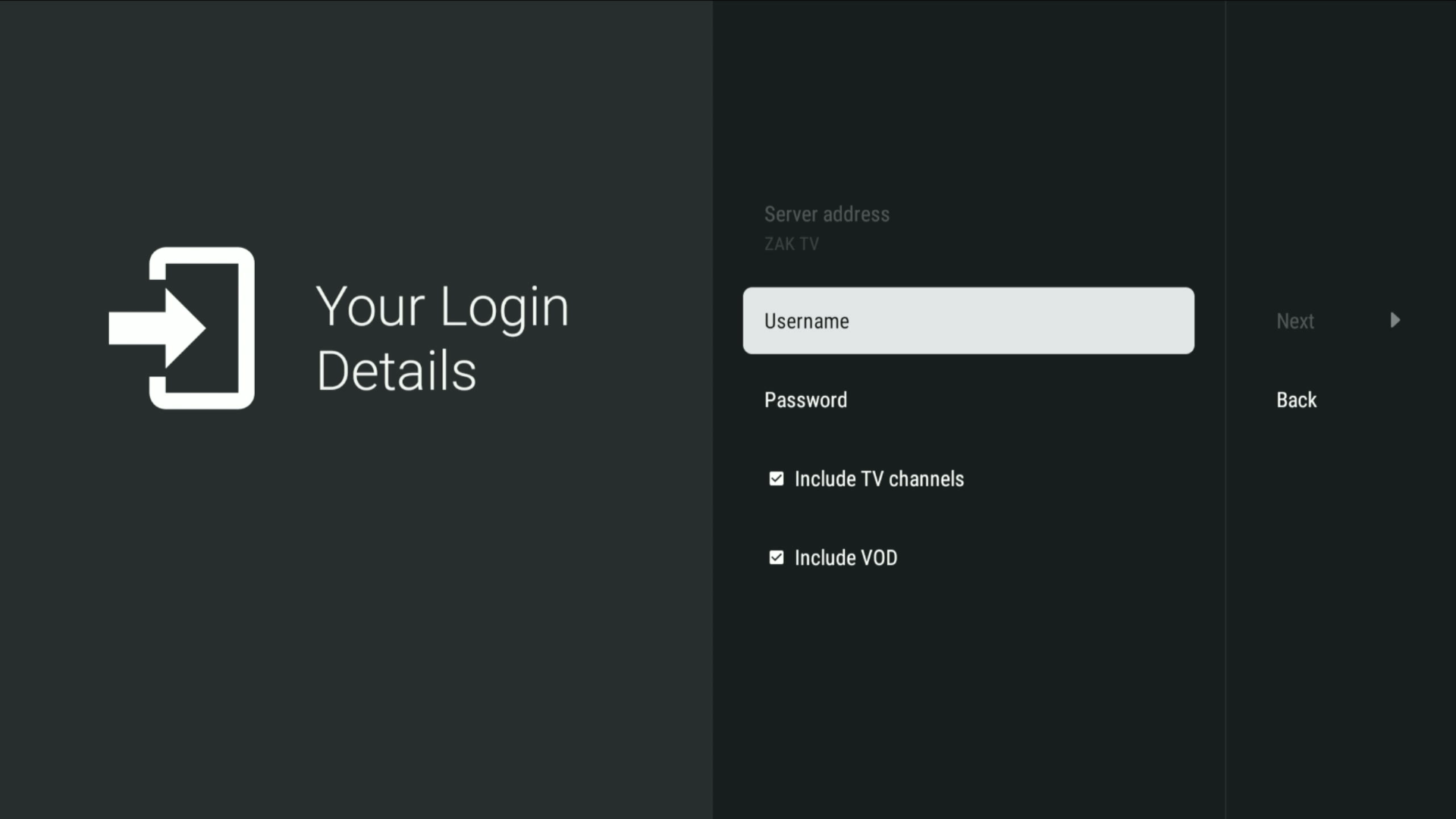
Step 9
Click Next and let the playlist process.
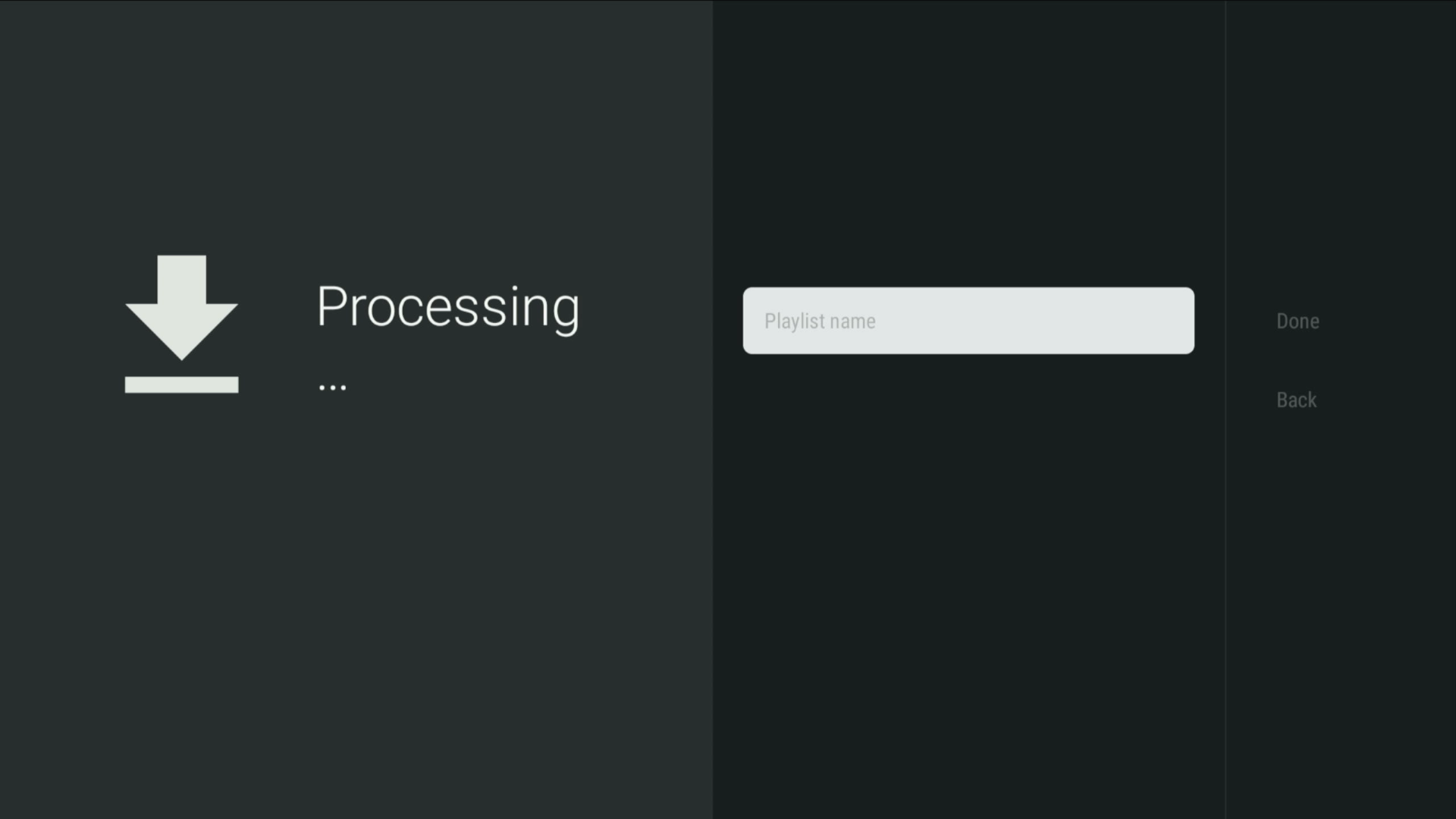
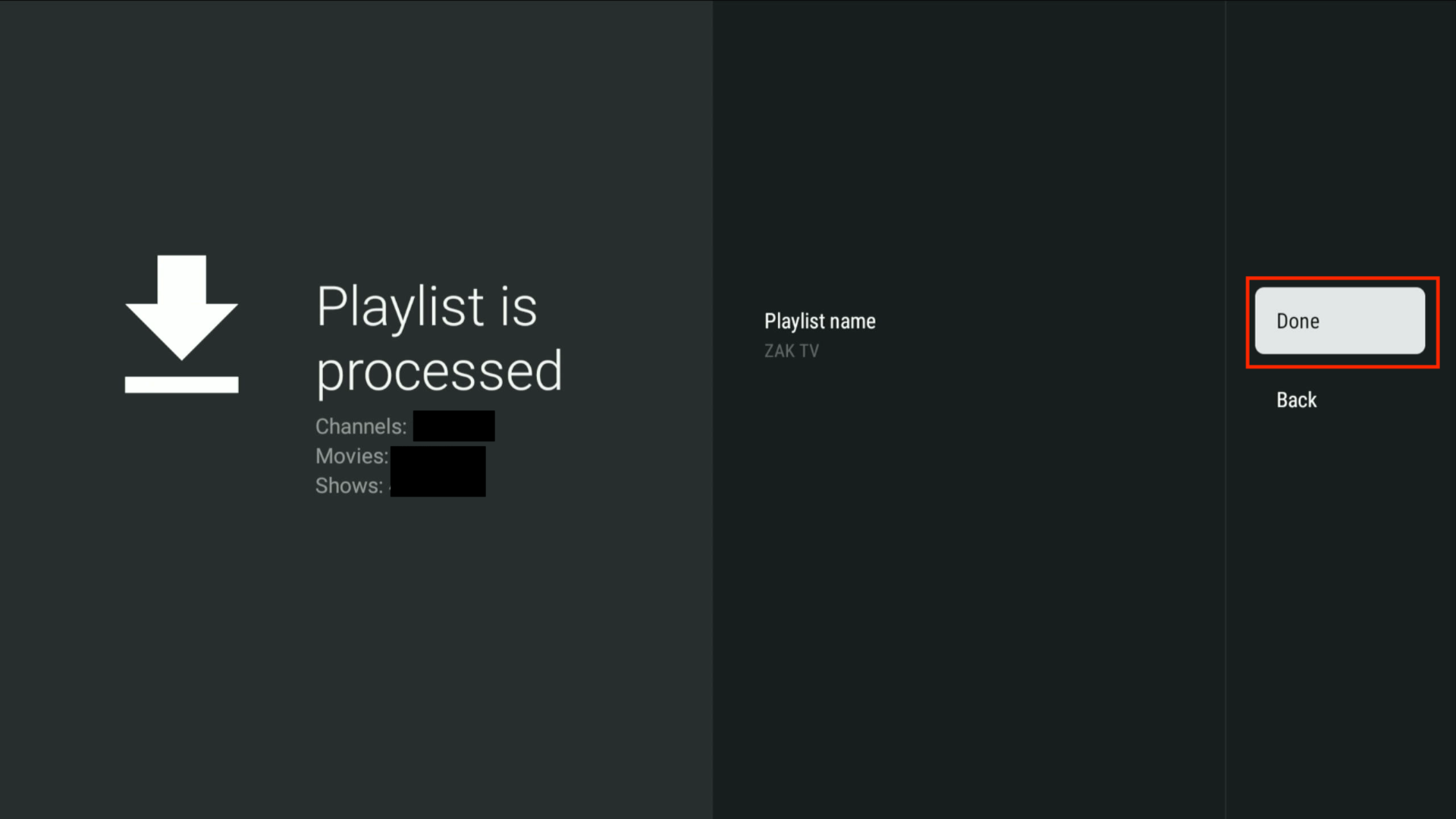
Step 10
Once the playlist has been processed, click Done.
Using ZAK TiviMate
TV Guide
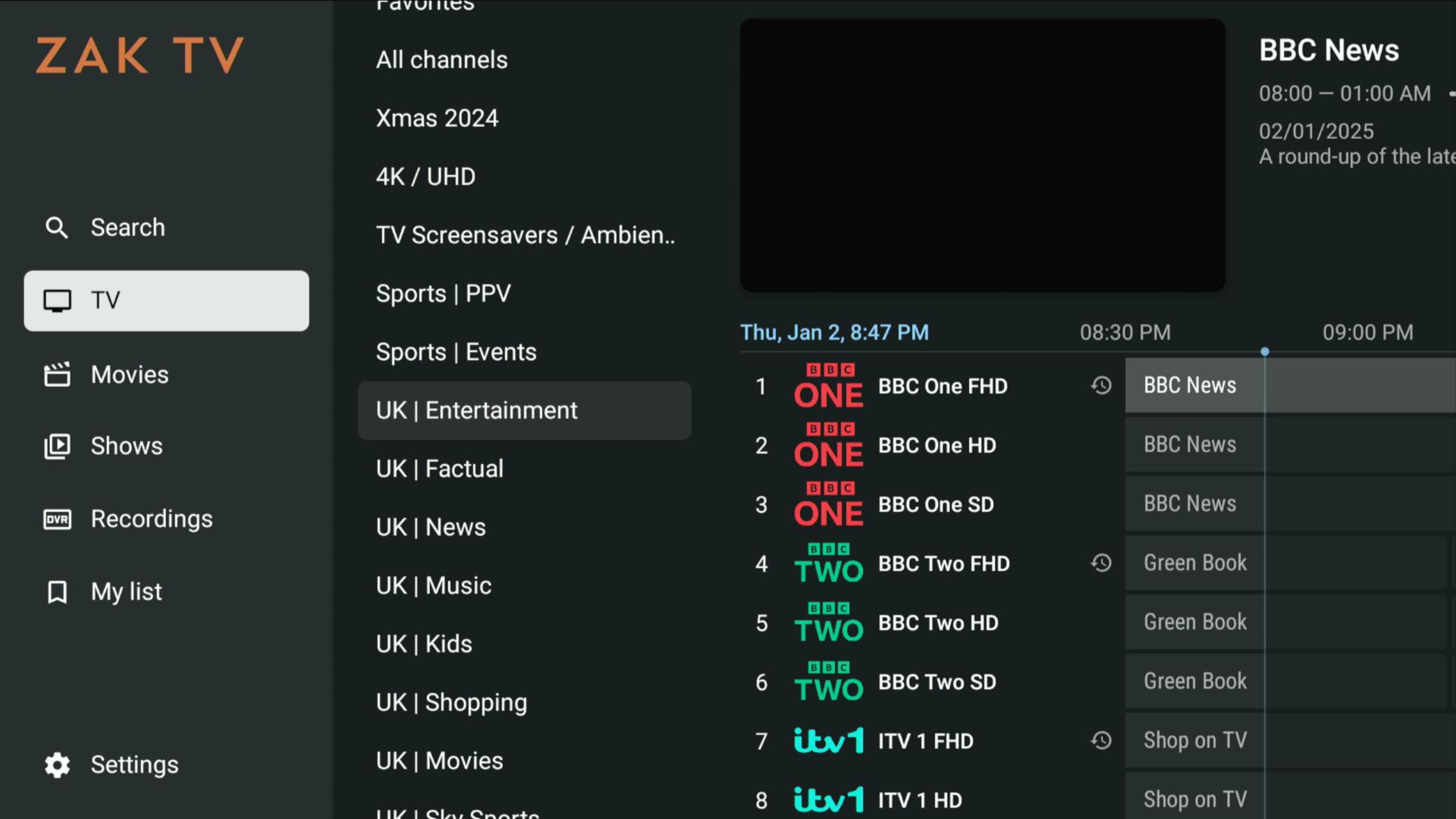
After setup, you'll be shown the TV Guide screen. Choose your channel and enjoy! Press Back on your remote to explore Categories.
Additional Features
- Search, Movies, TV Shows, Recordings: Press the Left button on your remote to access these options.
Step 14
You will then be shown the TV Guide screen. Here, you can choose
whatever channel you like. Enjoy!
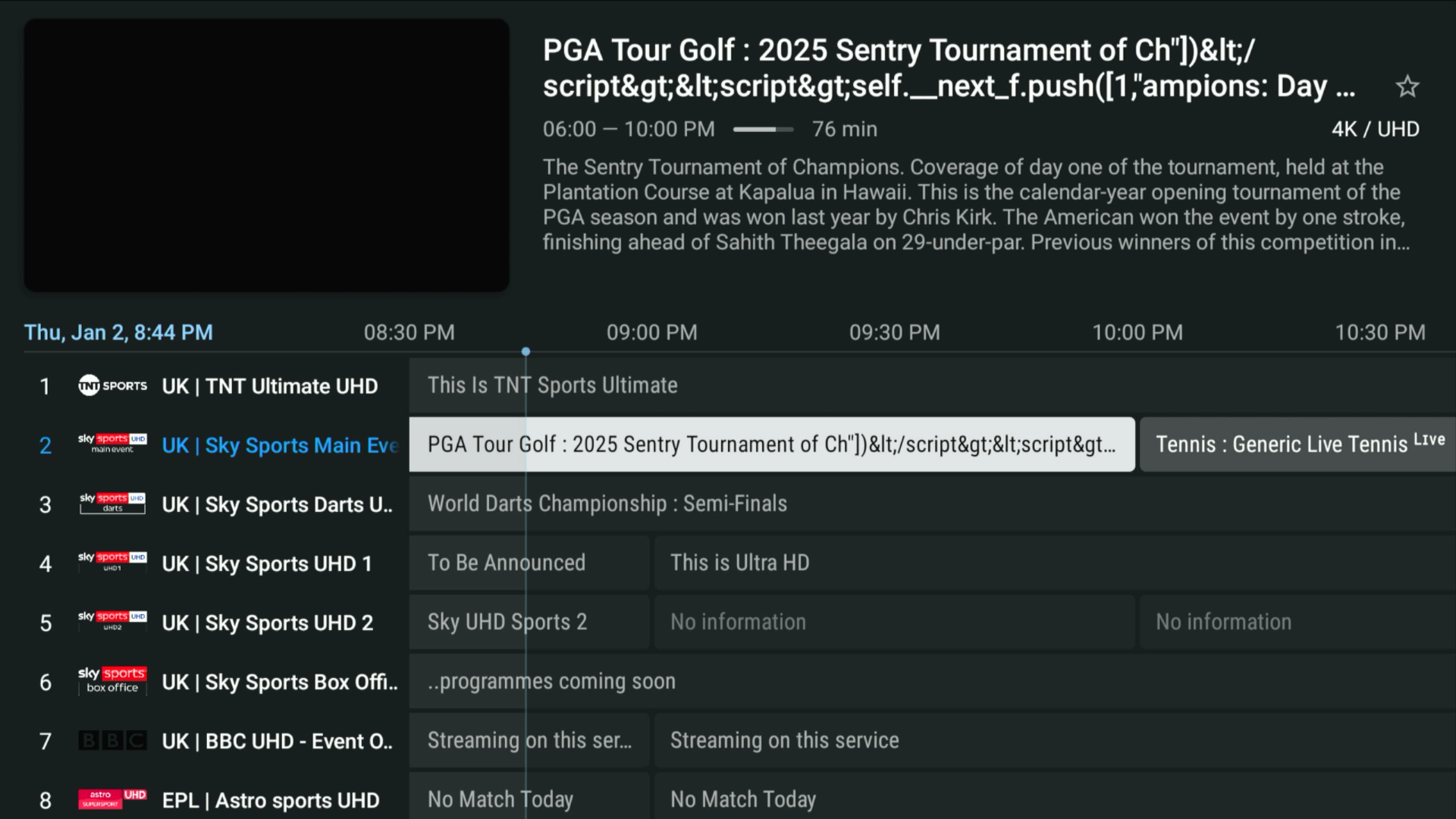
If you press the Back button on your remote, you will see options for Categories.
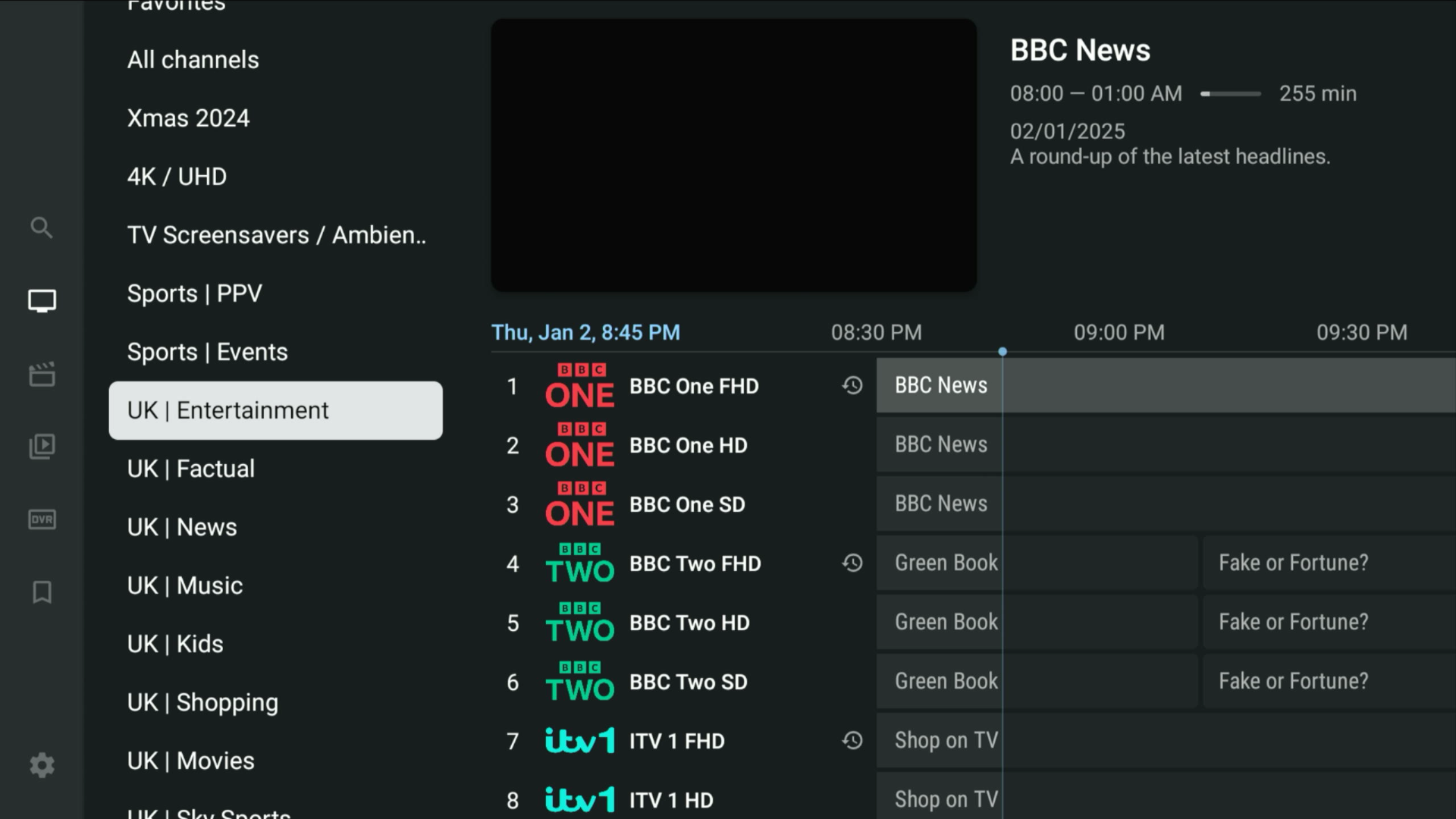
If you press the Left button on your remote, you will see options for Search, Movies, TV shows, and Recordings.